
Welcome!
Getting Started with Wedding Maps
Read below to Get The Most Out Of Your Membership
Welcome to Wedding Maps! We’re thrilled to have you on board.
This guide will walk you through setting up your photographer profile and—if your plan includes it—submitting images to Feature Challenges, which are at the heart of the Wedding Maps platform.
If you have any questions or run into issues, please contact us at contact@weddingmaps.com.
Table of Contents
- 1. Log Into Your Account
- 2. Complete Your Photographer Profile
- 3. Submitting to Feature Challenges
- 4. Edit or Manage Your Submissions
- 5. Final Tips
- 6. Need Help?
1. Log Into Your Account
Before you do anything, you’ll need to access your dashboard.
- Check your email for a login link and instructions to reset your password. Be sure to check your spam or promotions folder.
- If needed, you can reset your password manually here.
- Log in at weddingmaps.com/dashboard using your email address as your username.
Once logged in, click “Photographer Profile” to begin.
2. Complete Your Photographer Profile
Your profile is what couples and vendors will see, so take your time with it. Don’t forget to save often—we’re still refining the dashboard UX, and saving frequently helps avoid any lost progress.

Section 1: General Information

- Business Name: Use your name only—please do not include “Photography.”
- Profile Description (About Us): Write 100–300 words about you or your business. You can pull content from your website or existing profiles.
- Featured Profile Image: Upload a landscape-oriented image (4×6 ratio preferred). Choose something personal or behind-the-scenes—something that represents you beyond a standard headshot.
Section 2: Location Info

- Region: Select your city or state. If your specific city is not listed, choose the nearest region—we’re still populating the full list.
- Address: If you don’t have a studio, you can simply enter your city and state.
Section 3: Services, Skills & Contact Info
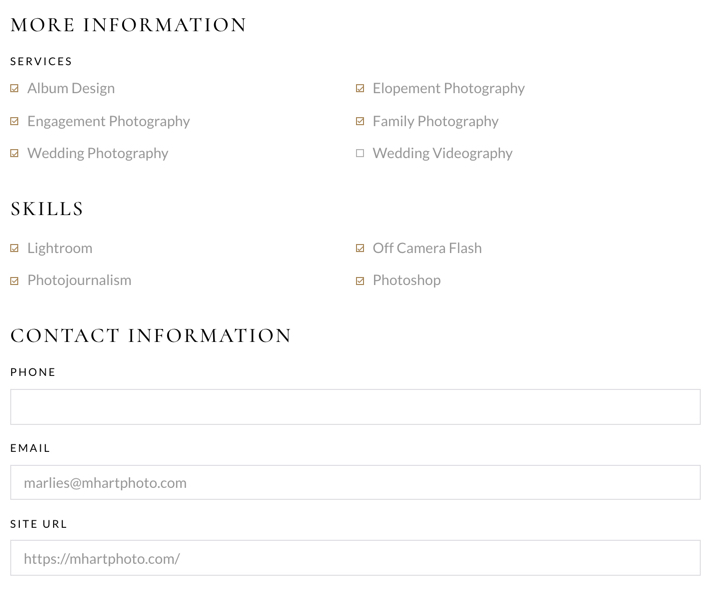
- Services & Skills: Check all that apply to your business.
- Contact Info: Include as much as you’d like to publicly display. This appears on your public-facing profile.
Section 4: Media & Galleries
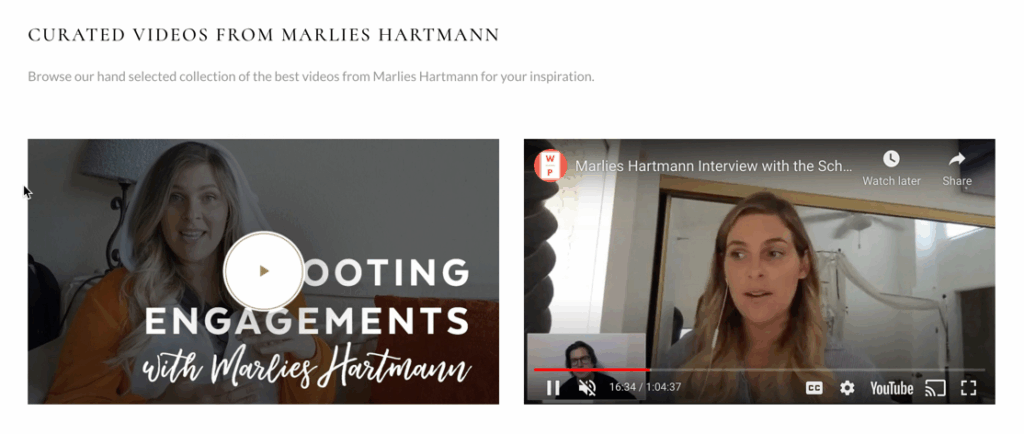
- Curated Videos (Optional): Add Vimeo or YouTube links for slideshows, interviews, or behind-the-scenes content.
- Curated Galleries: Upload up to 4 galleries with images sized between 800px and 2400px wide. Organize them however you wish—by session type, time of day, or creative theme. Click “Add Row” to create multiple galleries.
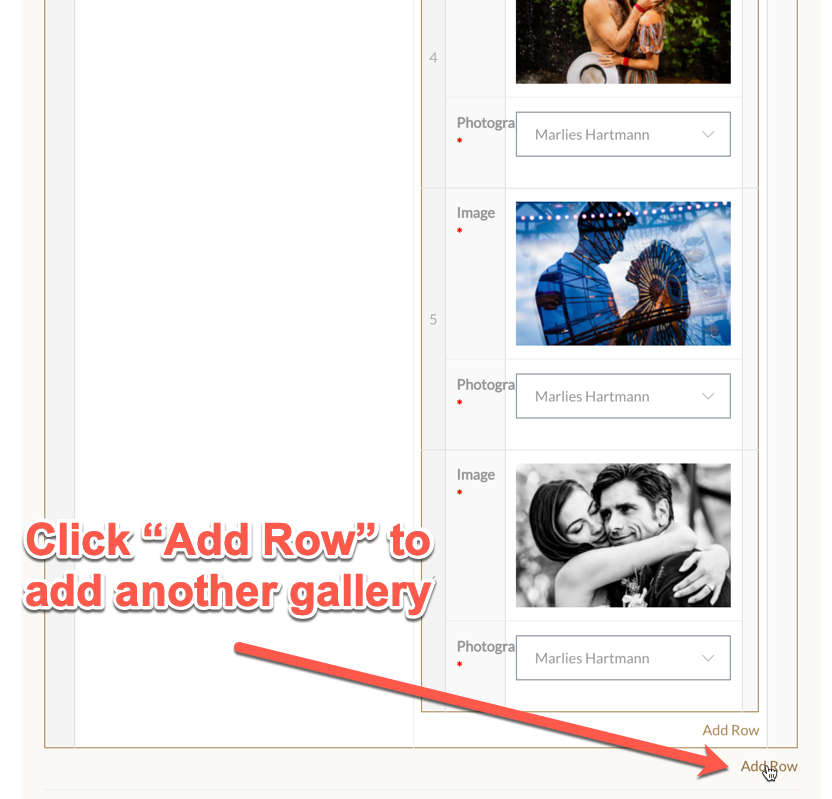
Important: Each image must be associated with your profile. This ensures they are correctly linked to your profile when used across Wedding Maps (e.g., venue pages, articles, tips).
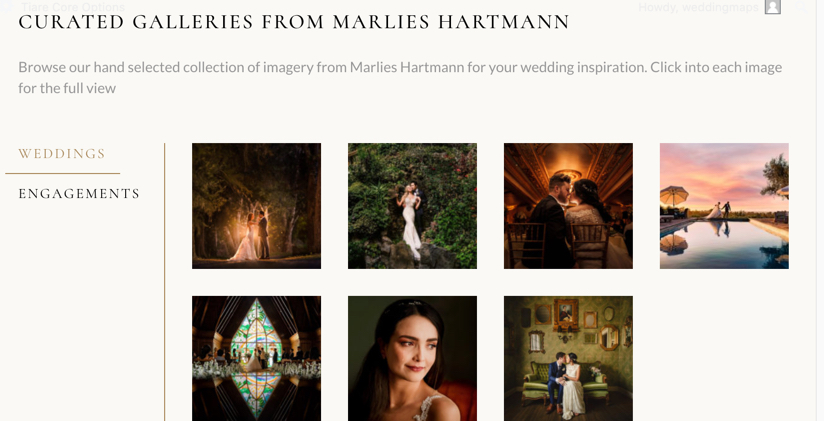
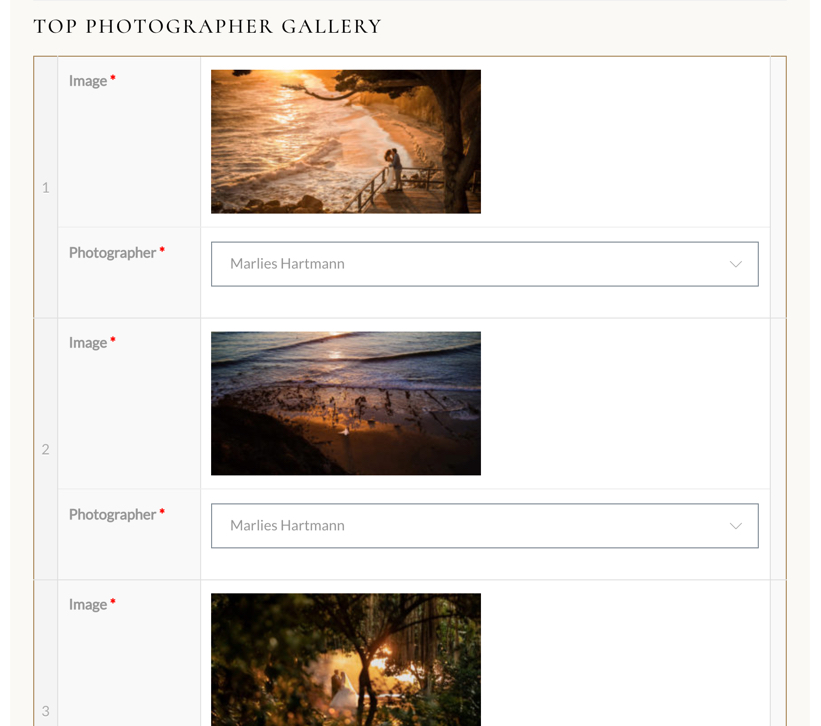
Top Photographer Gallery: Upload 3–5 high-resolution images (around 2000px wide). These will appear prominently at the top of your profile.
3. Submitting to Feature Challenges
If your membership includes access to Feature Challenges, this is your opportunity to get your work featured across Wedding Maps, industry blogs, partner websites, and even SLR Lounge.
How to Submit:
- Navigate to the Feature Challenges.
- Choose the challenge theme or category you’d like to submit to.
- Upload your image(s) and assign a venue or location for each submission.
- Click “Save” to complete your submission.
Your images may appear:
- On your profile
- On the venue/location pages under the “Submissions” tab
- In Wedding Maps blog articles, tips, and feature pages (always with credit + link to your profile)
Note: Feature Challenges are only available to select membership tiers. If you don’t currently have access, consider upgrading your plan to unlock this feature.
4. Edit or Manage Your Submissions
- Portfolio Images: Go to your Photographer Profile section to edit or remove images.
- Feature Challenge Submissions: Go to your Submissions tab. You can delete images, but editing is currently disabled for contest entries.
5. Final Tips
- Tag your images with venues—this gives you more visibility by showing your work on venue pages, with backlinks to your profile. (More Info)
- If a venue isn’t listed, you can enter it manually. We’ll review and add it to the system as needed.
- Save your work often as you go—especially in this beta phase.
6. Need Help?
If you need assistance at any point, please don’t hesitate to reach out to our team at contact@weddingmaps.com. We’re here to help you make the most of your Wedding Maps membership.