
Getting Started with Wedding Maps
Read below to Get The Most Out Of Your Membership
Welcome to Wedding Maps! We’re thrilled to have you on board.
This guide will walk you through setting up your photographer profile and—if your plan includes it—submitting images to Feature Challenges, which are at the heart of the Wedding Maps platform.
If you have any questions or run into issues, please contact us at contact@weddingmaps.com.
Set Up Your Profile
1. Log Into Your Account
Before you do anything, you’ll need to access your dashboard.
-
- Check your email for a login link and instructions to reset your password. Be sure to check your spam or promotions folder.
-
- If needed, you can reset your password manually here.
-
- Log in at weddingmaps.com/dashboard using your email address as your username.
Once logged in, click “Photographer Profile” to begin.
2. Complete Your Photographer Profile
Your profile is what couples and vendors will see, so take your time with it. Don’t forget to save often—we’re still refining the dashboard UX, and saving frequently helps avoid any lost progress.

Section 1: General Information

-
- Business Name: Use your name only—please do not include “Photography.”
-
- Profile Description (About Us): Write 100–300 words about you or your business. You can pull content from your website or existing profiles.
-
- Featured Profile Image: Upload a landscape-oriented image (4×6 ratio preferred). Choose something personal or behind-the-scenes—something that represents you beyond a standard headshot.
Section 2: Location Info

-
- Region: Select your city or state. If your specific city is not listed, choose the nearest region—we’re still populating the full list.
-
- Address: If you don’t have a studio, you can simply enter your city and state.
Section 3: Services, Skills & Contact Info
-
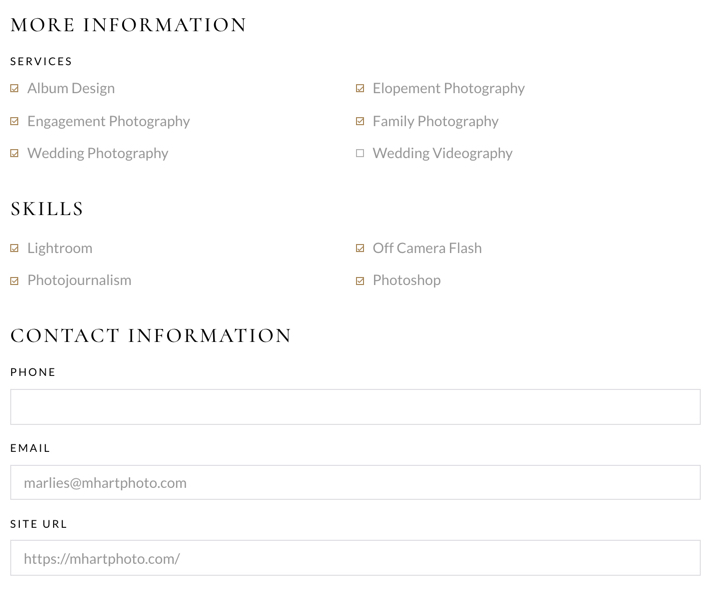
- Services & Skills: Check all that apply to your business.
-
- Contact Info: Include as much as you’d like to publicly display. This appears on your public-facing profile.
Section 4: Media & Galleries
-
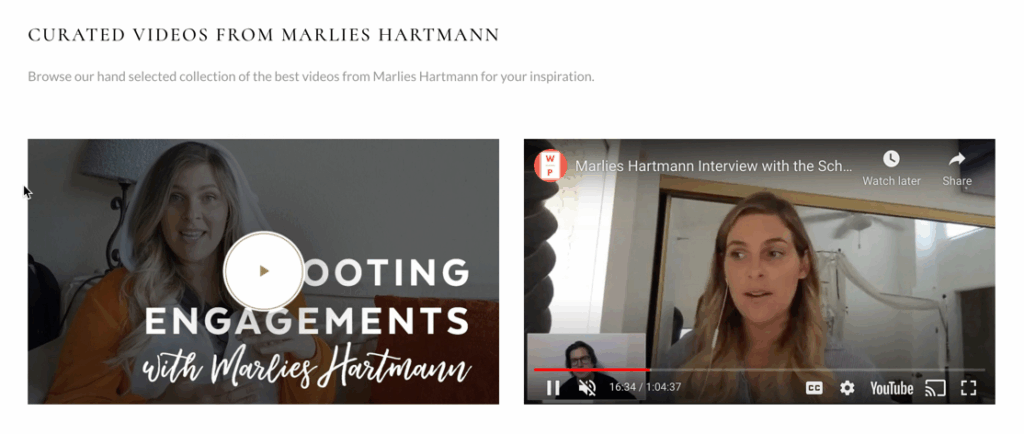
- Curated Videos (Optional): Add Vimeo or YouTube links for slideshows, interviews, or behind-the-scenes content.
-
- Curated Galleries: Upload up to 4 galleries with images sized between 800px and 2400px wide. Organize them however you wish—by session type, time of day, or creative theme. Click “Add Row” to create multiple galleries.
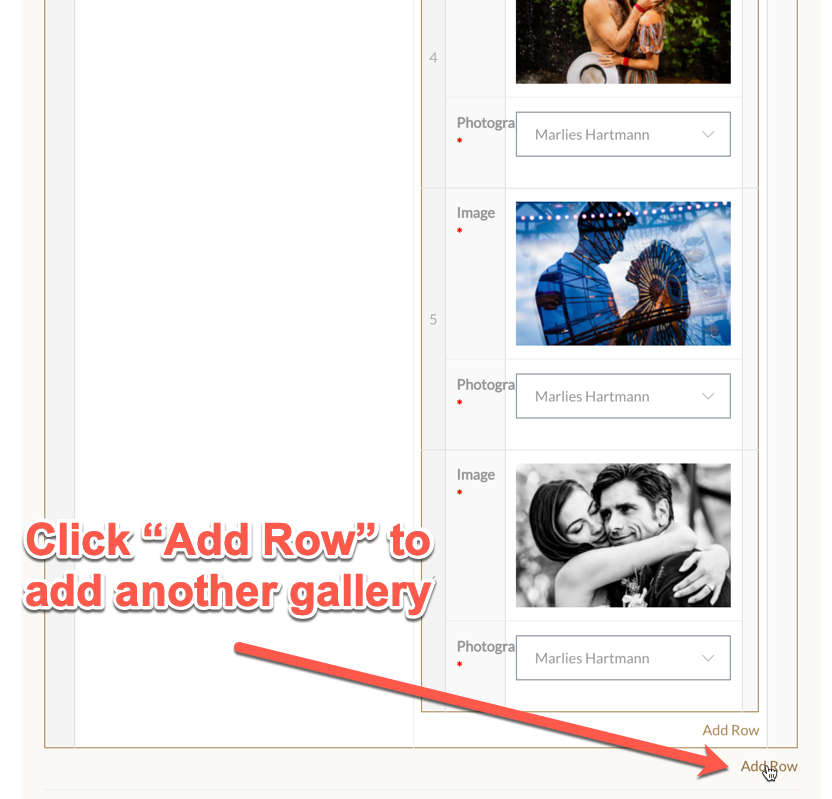
Important: Each image must be associated with your profile. This ensures they are correctly linked to your profile when used across Wedding Maps (e.g., venue pages, articles, tips).
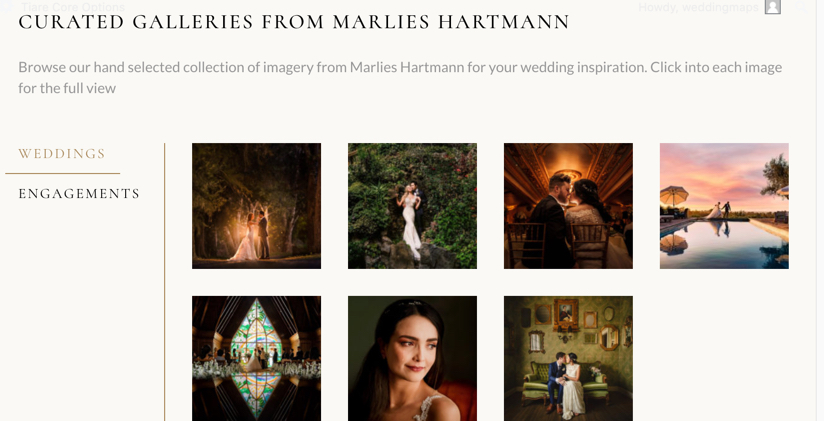
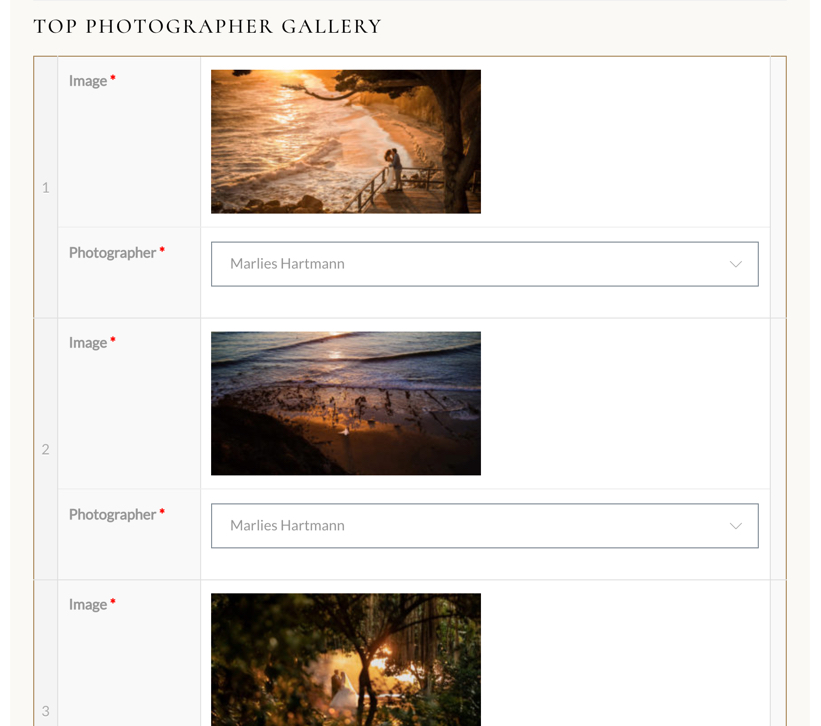
Top Photographer Gallery: Upload 3–5 high-resolution images (around 2000px wide). These will appear prominently at the top of your profile.
Ways to Participate & Get More Exposure
Once your profile is set up, Wedding Maps offers several optional ways to increase your visibility and get your work in front of couples, venues, and industry partners.
- Submit images to Feature Challenges for the chance to be featured across Wedding Maps and partner sites
- Tag venues on your images so your work appears directly on high-traffic venue pages
- Be selected for editorial features, brand collaborations, and special opportunities
These opportunities are optional and selective, but they’re one of the best ways to get more value from your membership once your foundation is in place.
View All Ways to Participate →
Need Help?
If you need assistance at any point, please don’t hesitate to reach out to our team at contact@weddingmaps.com. We’re here to help you make the most of your Wedding Maps membership.